Guide: experimental Profiles
ExperimentalA Profile for the details you use repeatedly.
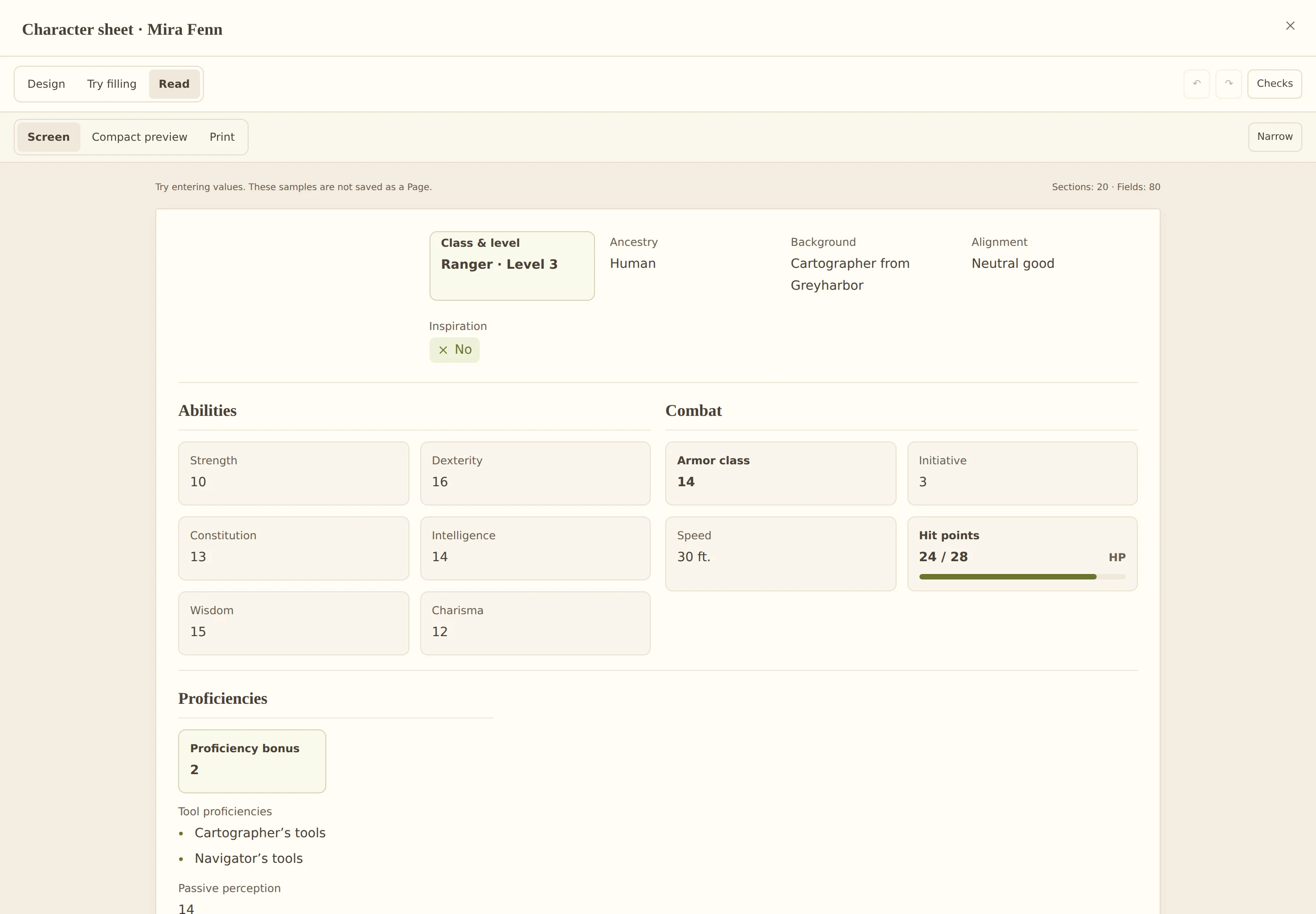
Create a Profile for your character and get it ready to print. Our example is Mira’s character sheet with a portrait and game values. You enter the values by hand.
A profile that becomes a character sheet
A Profile belongs to a World Entity and keeps your character’s details in one place. The template decides which fields exist and how they are arranged. The finished view becomes your character sheet for screen and paper.
The sheet is connected to the character in your world: you can add names, values and notes later and open the view again. To start, one character with a suitable template is all you need.
1. Start with a character
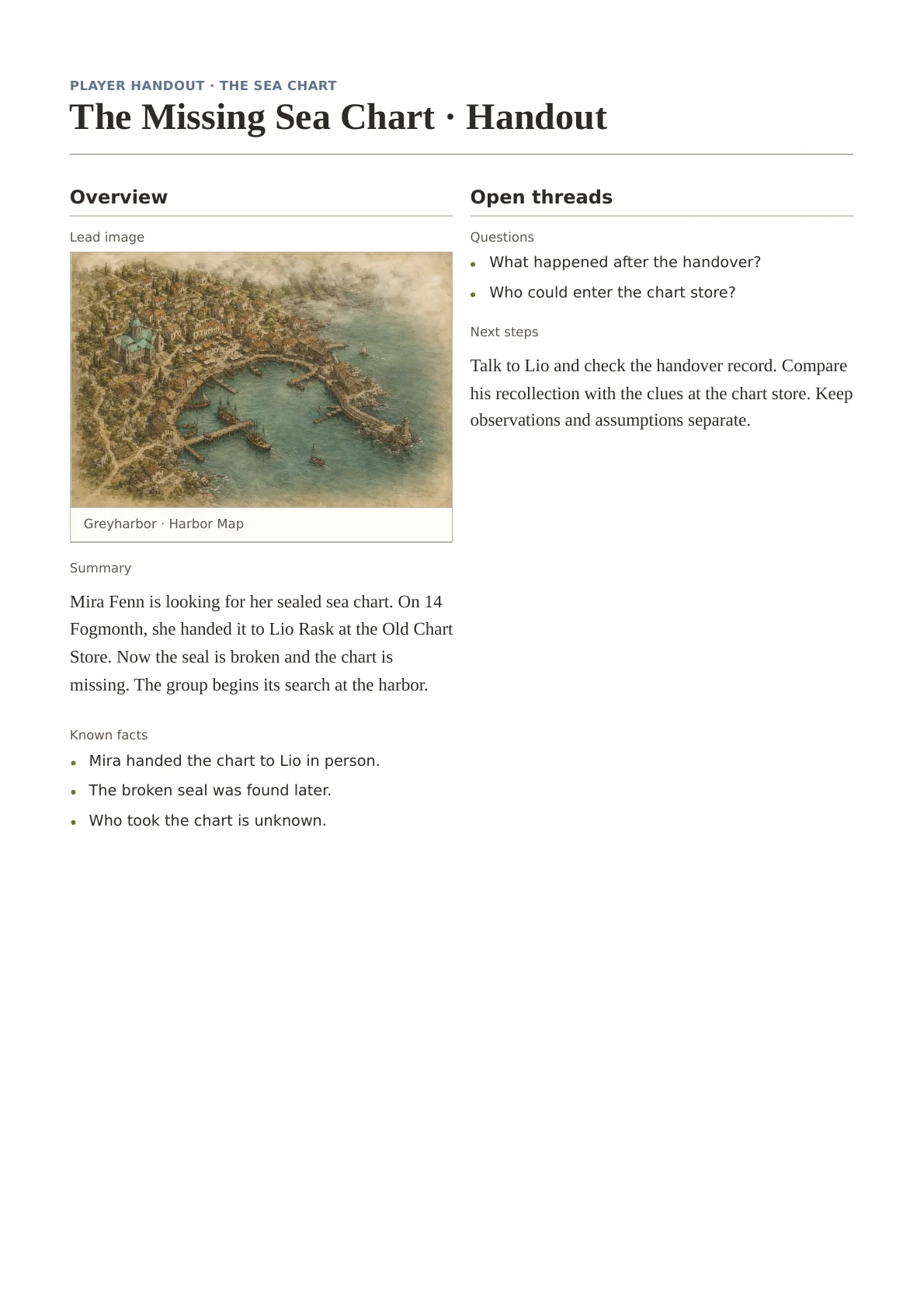
Create a World Entity for a person or open an existing character. The Profile belongs to that World Entity. Create a standalone handout as a separate Page.
2. Choose a suitable template
Open the Profile selection on your character and choose a current template for its World Entity type. Edit or duplicate a template in Realm settings for your own version. Open the builder in fullscreen to give the design, outline and properties room. When you duplicate a template, the original is not changed, so you can try your own version without worry.

3. Try the layout and fields
Arrange related details in rows and columns. Our character sheet includes a portrait, abilities and hit points. For a smaller start, an occupation, a goal and a few open questions are enough.
Put the details you need most at the top, so you can find them quickly at the table. The portrait helps you tell several characters apart.
4. Fill in and review the Profile
Try filling in and reading your template in the builder. Check how long text, empty fields and repeated entries look. Then create a new Profile from the template and fill in Mira’s details. Save it and open the finished character sheet.

5. Test the print view
Open the print view. In the print dialog you choose which fields go on paper and pick typography, spacing and margins. Can you read all the details, and are the page breaks in the right places? Use your browser’s print function to print the sheet or save it as a PDF.
A sheet with clean page breaks also works as a PDF you can save and print again later. Update changing values in the Profile; the printed sheet remains a snapshot.
6. Understand later template changes
If you change the template later, your finished character sheet keeps its previous layout. This also applies to which fields are visible when sharing. Check that Profile’s preview before you share it.
To use the new design, create a new Profile from the changed template. Your previous character sheet is not changed.
From the example to your Realm
Continue in your own Realm.
Try the steps with your own characters and stories. You can return to the guide whenever you need it.